


Before you begin
Set up the following in your Twilio account first.- A Messaging Service. Monumint sends texts through it. For texting US numbers, the service needs an approved A2P 10DLC campaign.
- One or more phone numbers for your agents.
- An API key, which we recommend, or your account’s auth token. We also recommend using a subaccount that holds only the numbers you want Monumint to use.
- A WhatsApp sender, if you plan to use WhatsApp. See WhatsApp below.
Connect Twilio
- In Monumint, go to Integrations, open the Available tab, and click Twilio.
- Enter your Account SID and Messaging Service SID.
- Choose an Authentication Method. For API Key, enter the key SID and secret. For Auth Token, enter your account’s auth token.
- Click Save. Monumint checks the credentials before saving them.
Assign numbers to agents
- Open an agent and go to the Channels tab.
- Under Phone, click Add Number and choose Use a number from my Twilio account.
- Pick a number and save.
- In Twilio, register the number as a WhatsApp sender under Messaging, then Senders, then WhatsApp senders. Wait until its status is Online.
- In the sender’s settings, set the webhook URL for incoming messages to
https://api-v2.getomni.ai/webhook/whatsapp. - In Monumint, assign the number to an agent and turn on WhatsApp under the agent’s Phone settings. The toggle is only available once Monumint finds an online WhatsApp sender for the number.
The 24-hour window
WhatsApp only allows free-form messages within 24 hours of the lead’s last message. Outside that window, including the first message to a new lead, a business can only send a template that WhatsApp has approved. Monumint follows this rule automatically.- Inside the window, the agent replies in its own words.
- Outside the window, the agent chooses the approved template that best fits the conversation so far.
- WhatsApp steps in a sequence always send the template assigned to that step.
- Teammates sending from the lead page can only choose from approved templates while the window is closed.
WhatsApp templates
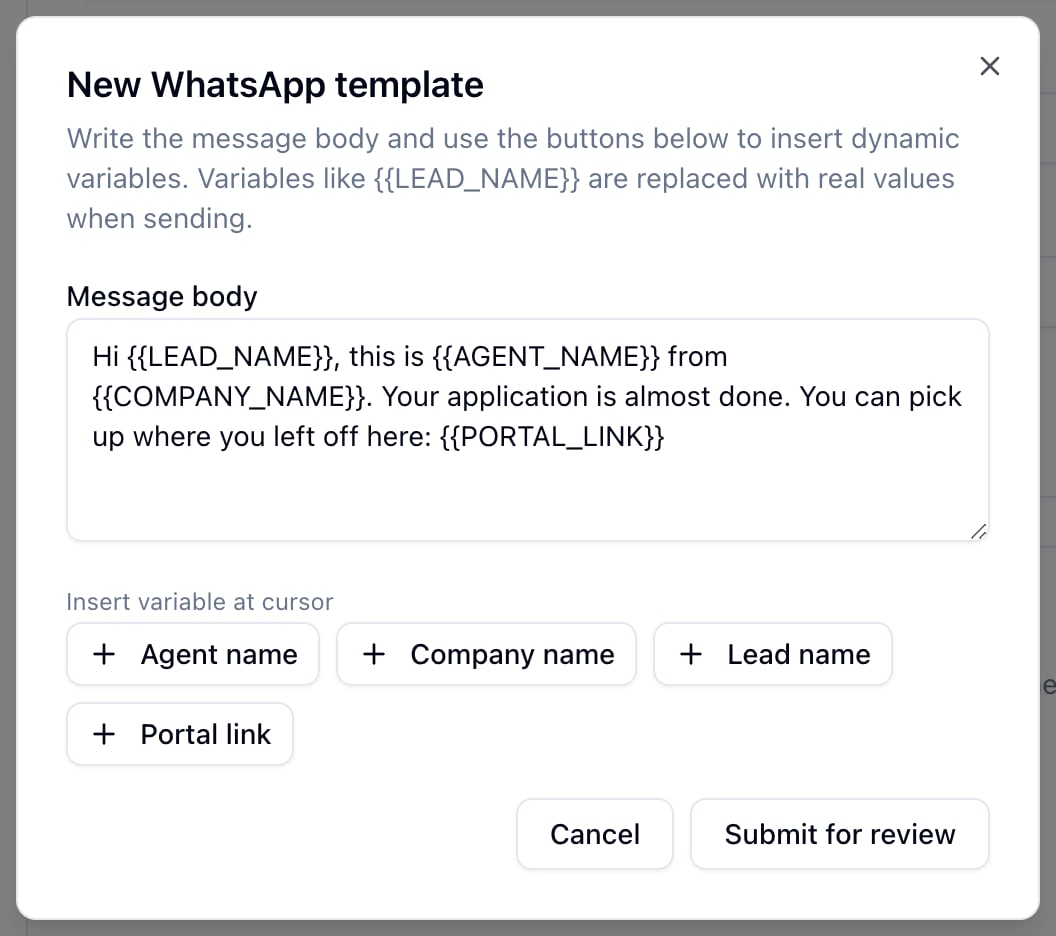
Create a template
- Go to Integrations and open Twilio.
- In the WhatsApp Templates card, click New template.
- Write the message body, and use the variable buttons to insert lead or agent details.
- Click Submit for review. WhatsApp usually reviews templates within a day, and the template can be used once it is approved.
A template is only sent to a lead when every variable in it has a value. For example, a template with
{{PORTAL_LINK}} is skipped for leads who don’t have a portal link.
Templates you create in Twilio’s Content Template Builder also appear in Monumint, as long as they use the variables above. Templates with numbered variables such as {{1}} are not shown.