

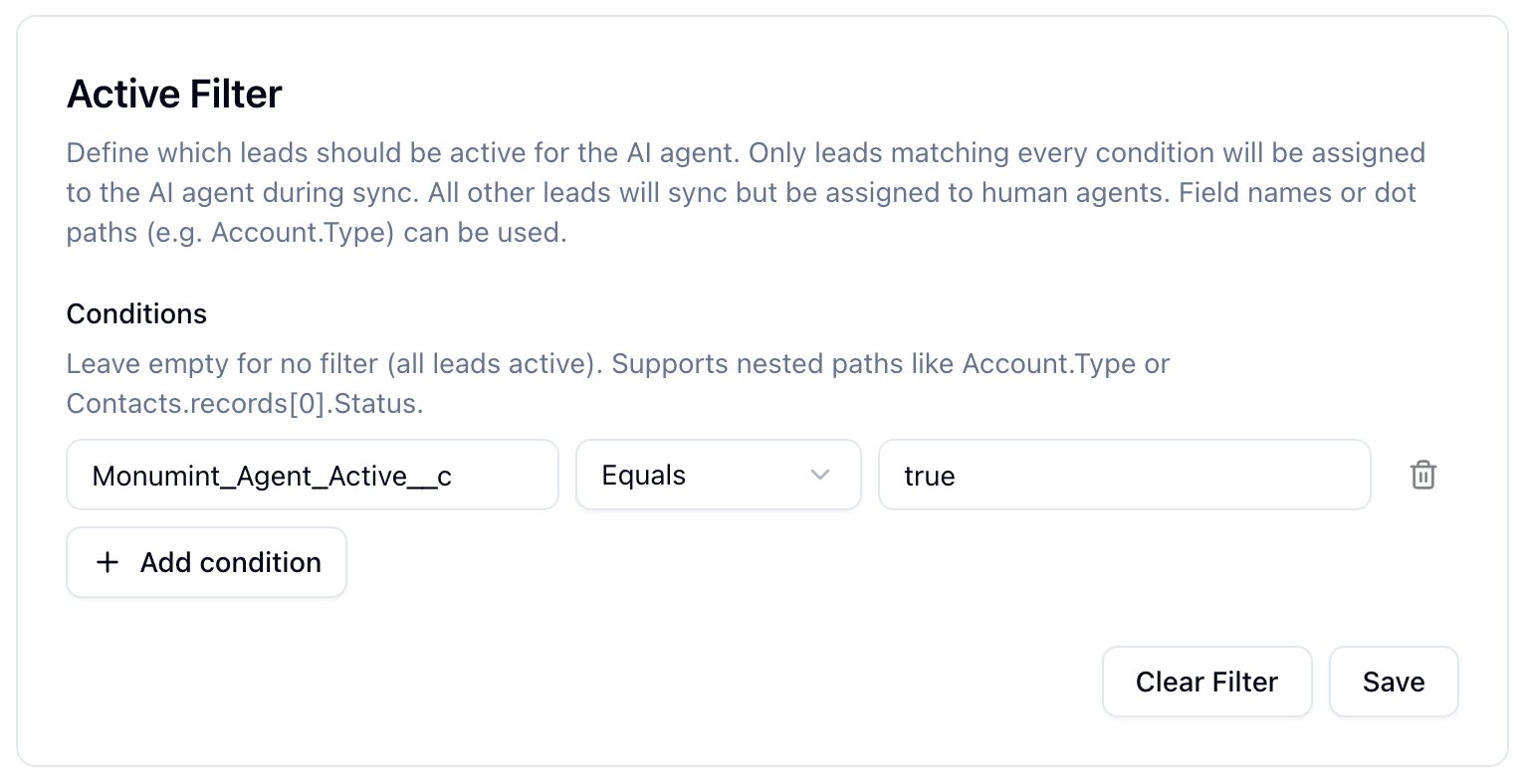
Set up an agent active checkbox
1
Create the field
In Object Manager, add a Checkbox field to Contact (or Lead) with
the label
Monumint Agent Active, and leave the default unchecked. Give
the integration user Read Access to the field.2
Add it to your audience query
Add
Monumint_Agent_Active__c to the SELECT list, and leave it out of
the WHERE clause.3
Add the condition
In the Active Filter card, set the condition to
Monumint_Agent_Active__c Equals true, then click Save.Conditions
A record must match every condition. Equals matches one exact value, and Contains matches any of several values. Greater than and Less than compare numbers. A record with an empty field never matches. If you leave the filter empty, every synced record is assigned to the agent.When a record changes
- The record starts matching the filter. It is assigned to the agent on the next sync, and outreach starts if the agent has not contacted the person before.
- The record stops matching the filter. It is reassigned to your team, and any scheduled agent messages are cancelled.